
Browser extension for Chrome, Edge and Brave
Fill only the form fields you choose, with realistic dummy data.
DummyDrop scans the page you are testing, lists every form field it finds, and fills just the ones you tick with valid, realistic dummy data. It works offline and never sends anything anywhere.
The Chrome Web Store listing is coming soon. This page will link to it as soon as it is live.
- No account
- No analytics
- No network calls
- Free to use
How it works
Scan, choose, fill.
Scan the page
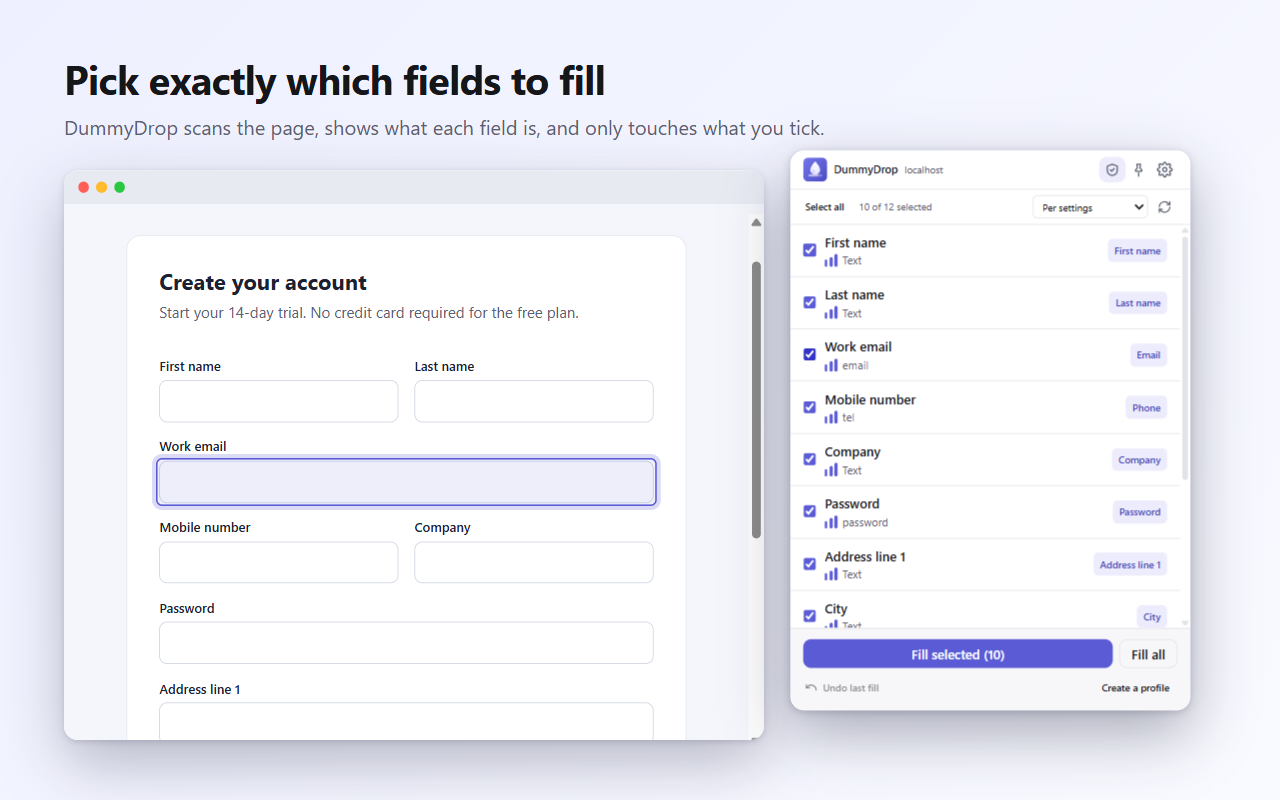
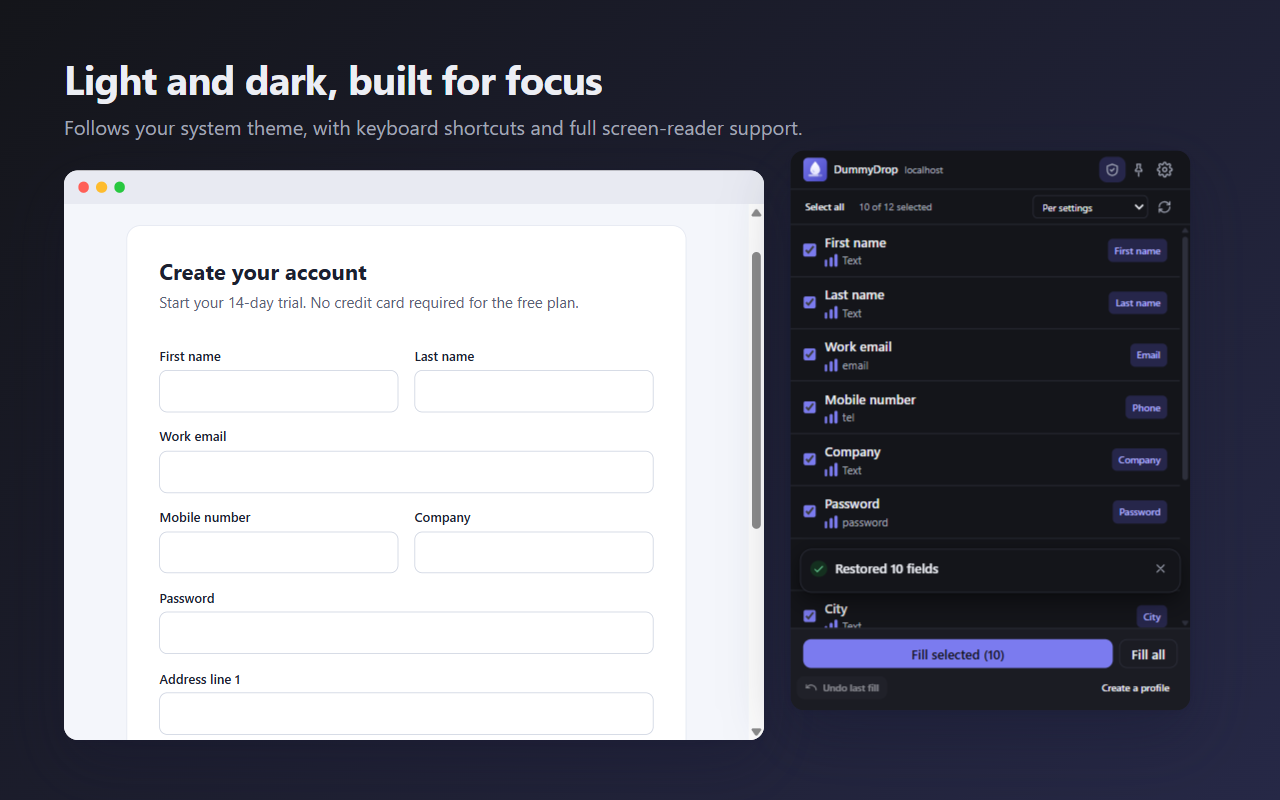
Click the DummyDrop icon or press Alt+Shift+F. DummyDrop scans the page, including iframes, open shadow DOM and forms that appear later, and lists every field with its type and how sure it is.
Choose what to fill
Tick the fields you want. Hover a row to outline that field on the page. If DummyDrop is unsure what a field is, pick the type yourself and it remembers the choice for that site.
Fill, and undo if you like
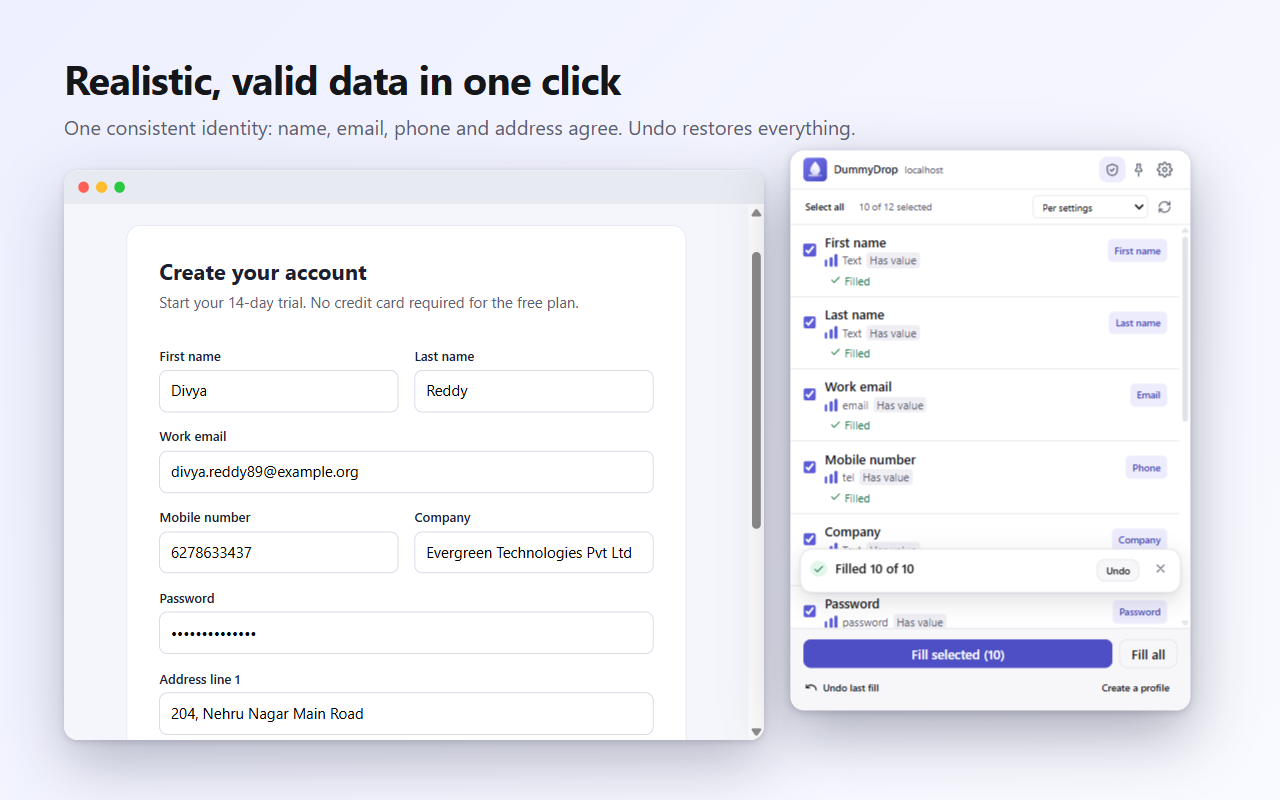
Press Fill selected or Fill all. Each field gets valid data that respects its limits, and nothing is ever submitted. Undo last fill restores exactly what was there.
What it does
Built to get out of your way.
Everything here is something DummyDrop does today. The How it works page explains each part in detail.
Only what you tick
Only ticked fields are ever touched. Use Fill selected, Fill all, or Select all / none, and Undo last fill if you change your mind.
Finds fields wherever they hide
Same-origin iframes, open shadow DOM and forms that load late are all picked up, and the list refreshes when the page changes.
Knows what each field is
It weighs the input type, name, id, placeholder, label, autocomplete and nearby text, in English, common
Hinglish and short forms such as mob, pin and dob.
Data that passes validation
29 kinds of data, from names and emails to test cards and Indian ID formats. It respects maxlength, minlength, min, max, step, pattern and required, and skips a field with a reason rather than fill junk.
One consistent identity
Within a fill, the name, username, email and phone belong to the same made-up person, and the city, state and pincode agree wherever possible.
Fills like a real user
It sets values the way a browser does and fires the focus, input, change and blur events, so forms built with React or Vue register what was typed. It is tested against both.
Your own values and profiles
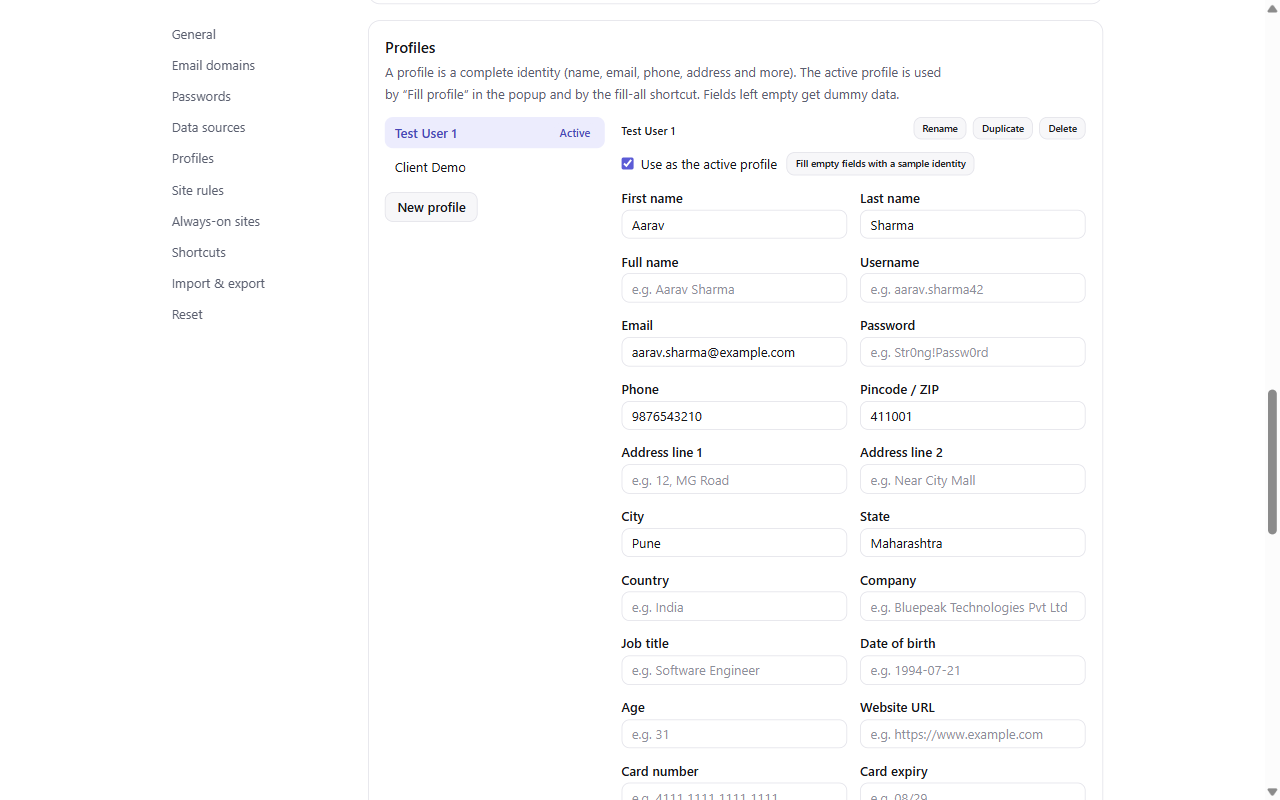
Save your own values per field type, choose dummy data, your values or a random pick, and keep named profiles such as "Test User 1" that fill a whole identity in one click. You can even add field types of your own, such as Employee ID, with the words that identify them.
5 countries
India, United States, United Kingdom, Canada and Australia. Phone numbers, postal codes and addresses follow the country you pick. India is the default.
Light, dark and accessible
Follows your system theme. Full keyboard support, screen-reader announcements, reduced-motion support and WCAG AA contrast.
Safe by design
It is careful with what it fills.
Test card numbers only
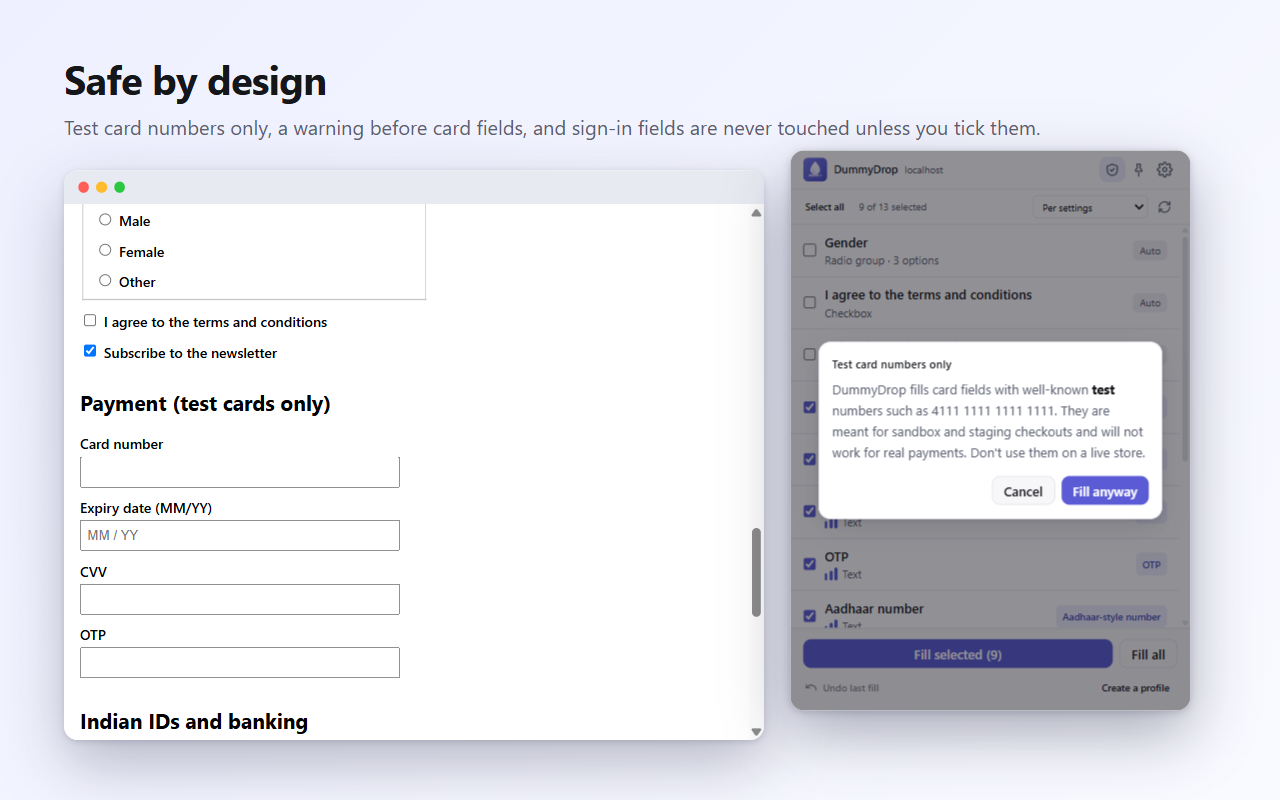
Card fields get well-known payment-processor test numbers, never a real card, and you see a one-time warning before the first card fill.
Sign-in and banking fields stay alone
Fields that look like a real sign-in or banking login are left unticked, and are only filled if you tick them yourself.
It never submits a form
A fill only writes into fields. Submitting is always your decision.
It does not break the page
Highlights are drawn inside a closed Shadow DOM, so they cannot inherit or disturb the page's own styles.
Stay open your way
A popup, a side panel, or a window you can move.
By default DummyDrop opens as a popup, which closes when you click elsewhere. If you would rather keep it open while you work, turn on Keep DummyDrop open in the settings and choose where:
- Side panel: docked beside the page, never covering the form.
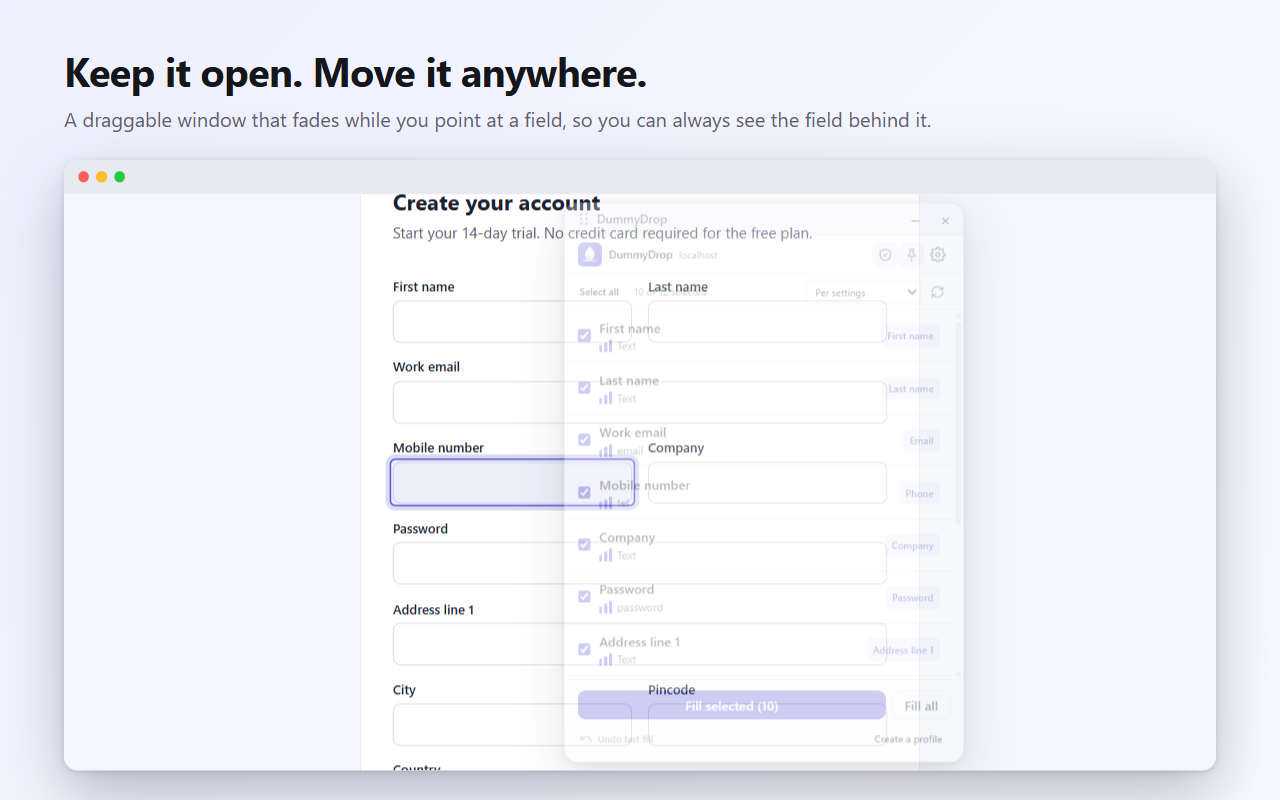
- Floating window: a small icon you can drag anywhere on the page. It opens a movable window that fades while you point at a field, so the field behind it stays visible.
For sites you use all the time, you can also let DummyDrop work there without clicking its icon each time.
Private by design
Nothing leaves your browser.
DummyDrop has no server, no account, no analytics and no network calls, and loads no remote code. Your settings, saved values and profiles stay on your device. The browser only gives it access to a page after you click its icon or press its shortcut there, or after you approve a site yourself.
See it
A closer look.
Try it on your next form.
Free to use. Works in Chrome, Edge and Brave. Questions? The Support page has answers.
The Chrome Web Store listing is coming soon. This page will link to it as soon as it is live.